Key takeaways
- Keep one clear record definition
- Resolve input issues before using totals
- Retain an editable working copy
Start with one classroom question
Total three equal-weight rubric criteria and track feedback. Define three criterion descriptors before use. Every criterion uses the same whole-number scale from zero to the entered maximum. Ask the person maintaining the records to agree the unit and record meaning before entering actual work. Keeping that definition stable makes the results comparable across the class.
Prepare a working copy
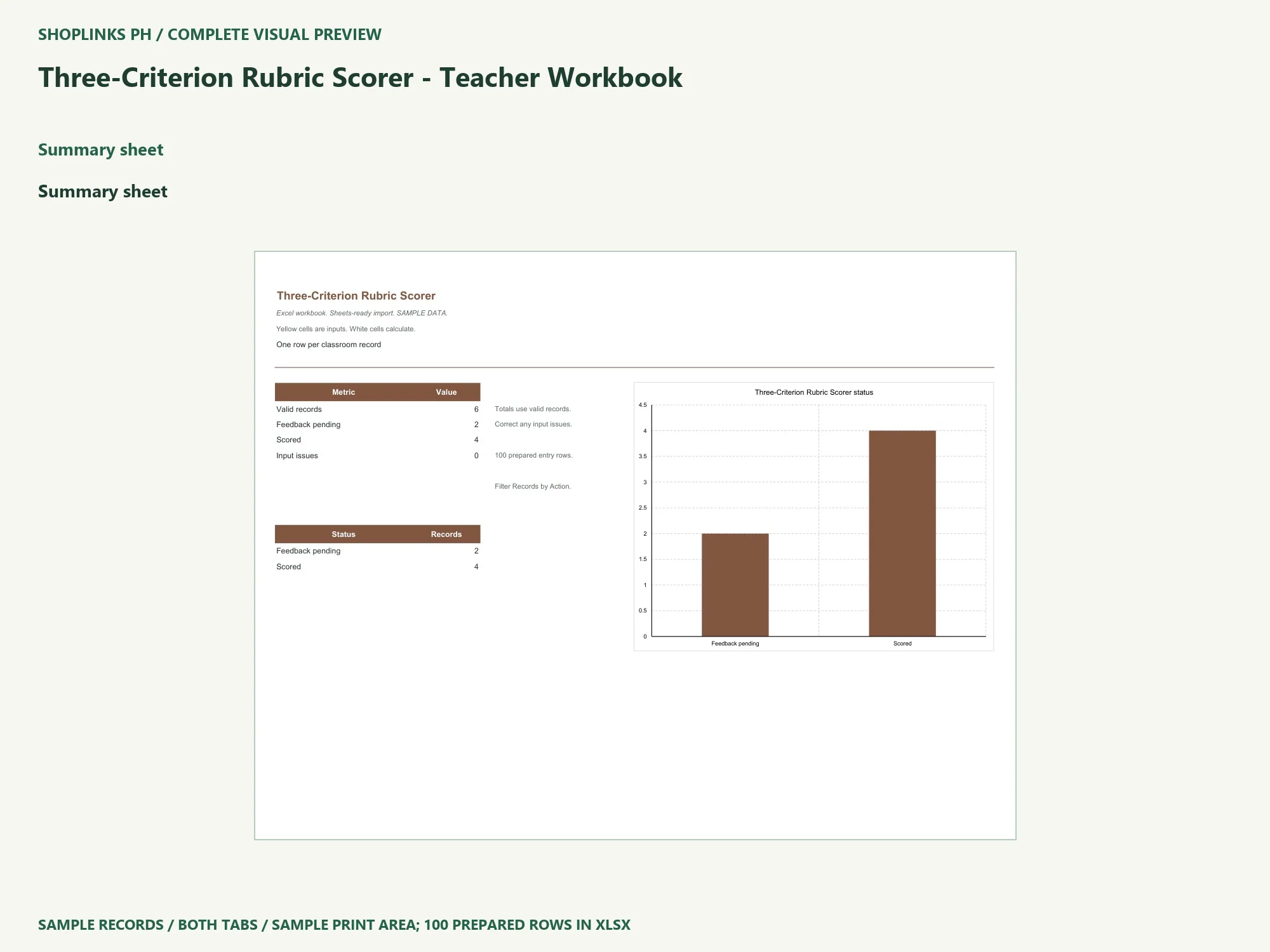
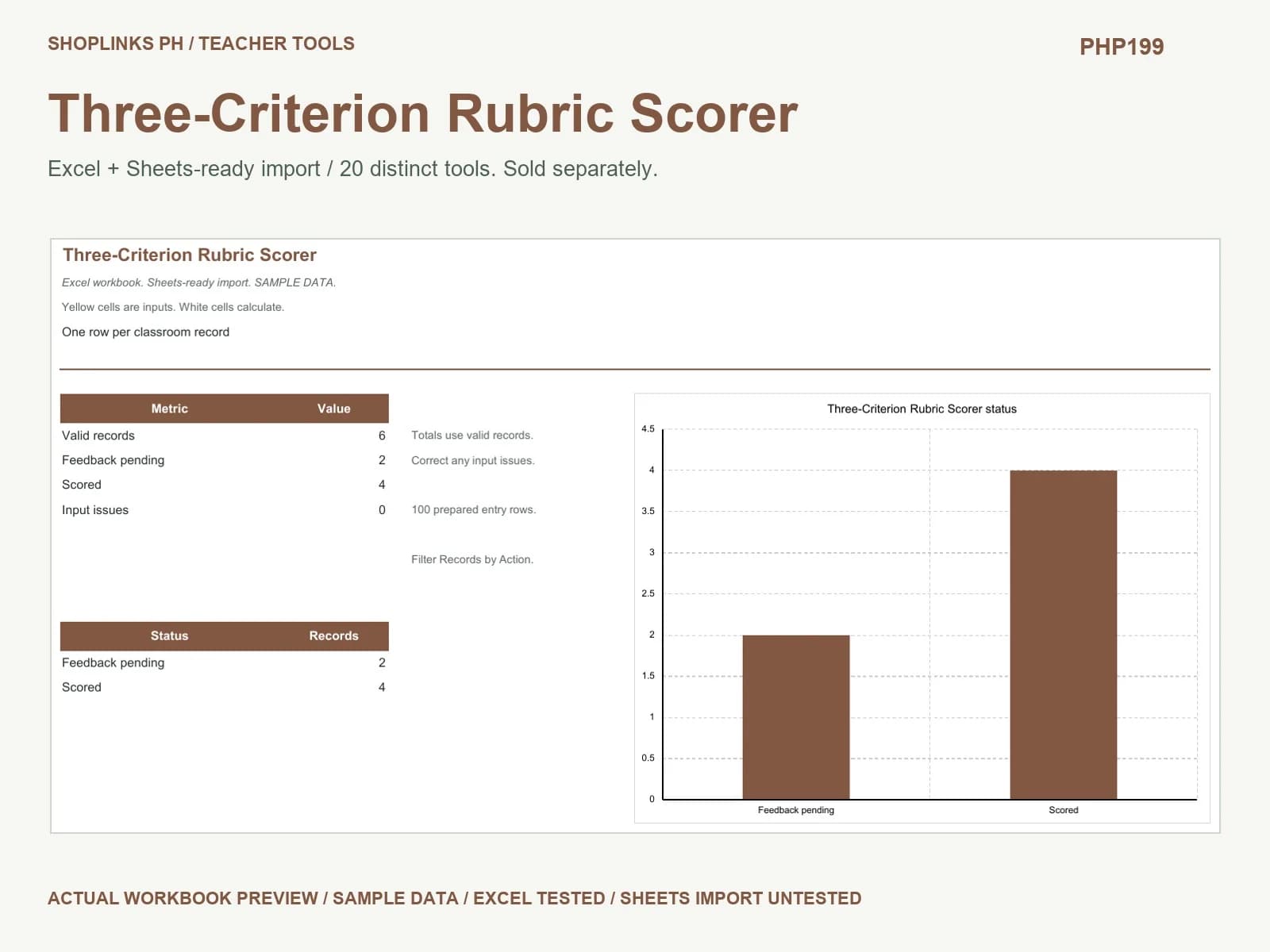
Extract the ZIP, open Workbook.xlsx in desktop Excel and save a working copy. Optional Google Sheets import uses the same XLSX: check dates, formulas, validation, filters and chart updates after conversion. Native Sheets conversion was not tested. The workbook includes Summary and Records. Six fictional sample rows show the expected level of detail. Replace these examples with your own records before relying on the totals. Store your working file in a location your school approves and keep a dated backup.
Keep inputs separate from calculations
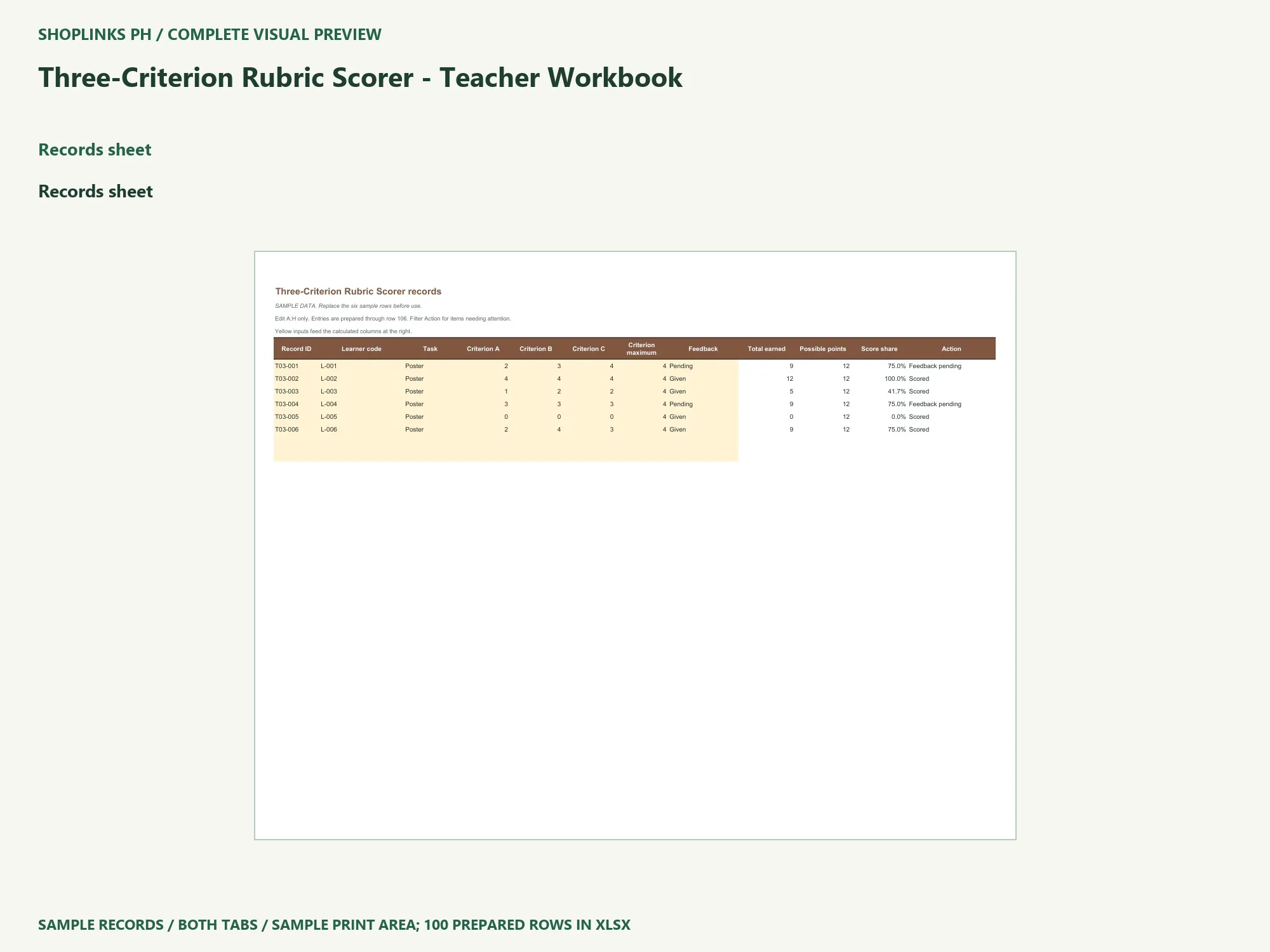
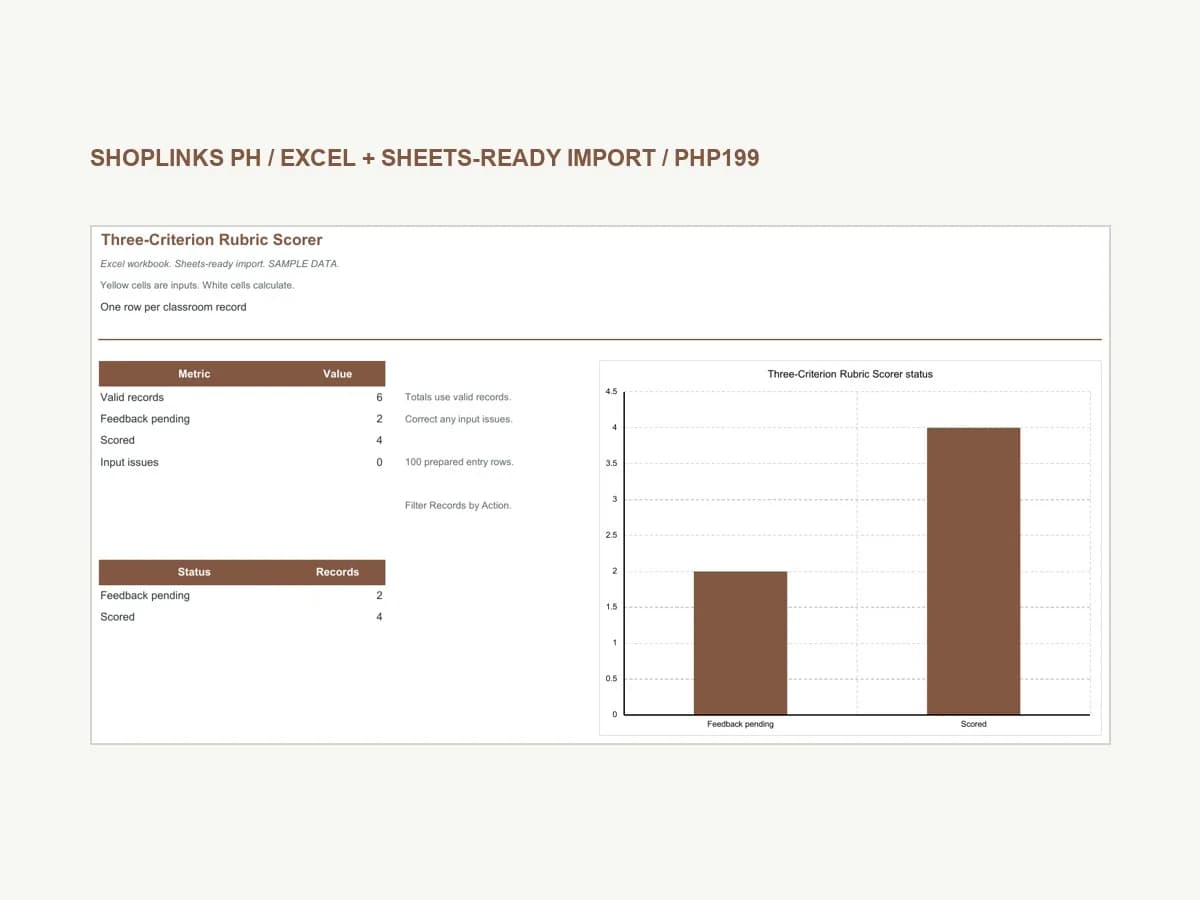
The yellow cells in A:H on Records accept your inputs: Record ID, Learner code, Task, Criterion A, Criterion B, Criterion C, Criterion maximum, Feedback. Use a unique record ID, and keep a complete record on one row. White columns calculate Total earned, Possible points, Score share, Action. Do not paste a source table across the formulas when replacing sample data.
Read a complete worked example
Ratings of 2, 3 and 4 with a four-point maximum total nine of 12 points, or 75 percent. The Action remains Feedback pending until feedback is recorded. Try the example in a disposable copy. Change one input, review the calculated values and inspect Summary. Restore the earlier value before making another change. This makes it easier to see which input caused a different result, rather than comparing two unrelated records.
Correct incomplete or inconsistent records
Missing input, Invalid number, Invalid input and Duplicate record identify entries needing correction. Numeric totals exclude these records and the summary shows an input-issue count. A real zero remains a zero. A blank optional date means that the event is still open, not that it happened on the reporting date. Use the same unit throughout each row, particularly when several people contribute data.
Review actions and retain a useful record
Filter the complete Records table by Action to find the next records to work on. The summary and chart include all valid records, including filtered-out rows. Assign follow-up to a named owner outside the formula fields. There are 100 prepared rows, from 7 through 106; start a new copy when full. Save the editable file, reopen it and check an edited value. Adjust the print area before exporting all actual records to PDF.
Understand the tool and its limits
An equal-weight three-criterion calculator; it does not supply curriculum rubrics or official grades. This workbook was recalculated and tested in desktop Microsoft Excel on Windows. Excel Mac, web and mobile were not tested. Native Google Sheets conversion is unverified. Use learner codes and omit sensitive notes. The PHP199 price covers this one teacher tool, including the optional Sheets import workflow. Other tools are sold separately. The download includes the workbook, illustrated PDF guide, static preview and narrated walkthrough.
View Three-Criterion Rubric Scorer - Teacher Workbook
Application reference: Google Docs Editors Help: work with Excel files.
Complete page preview
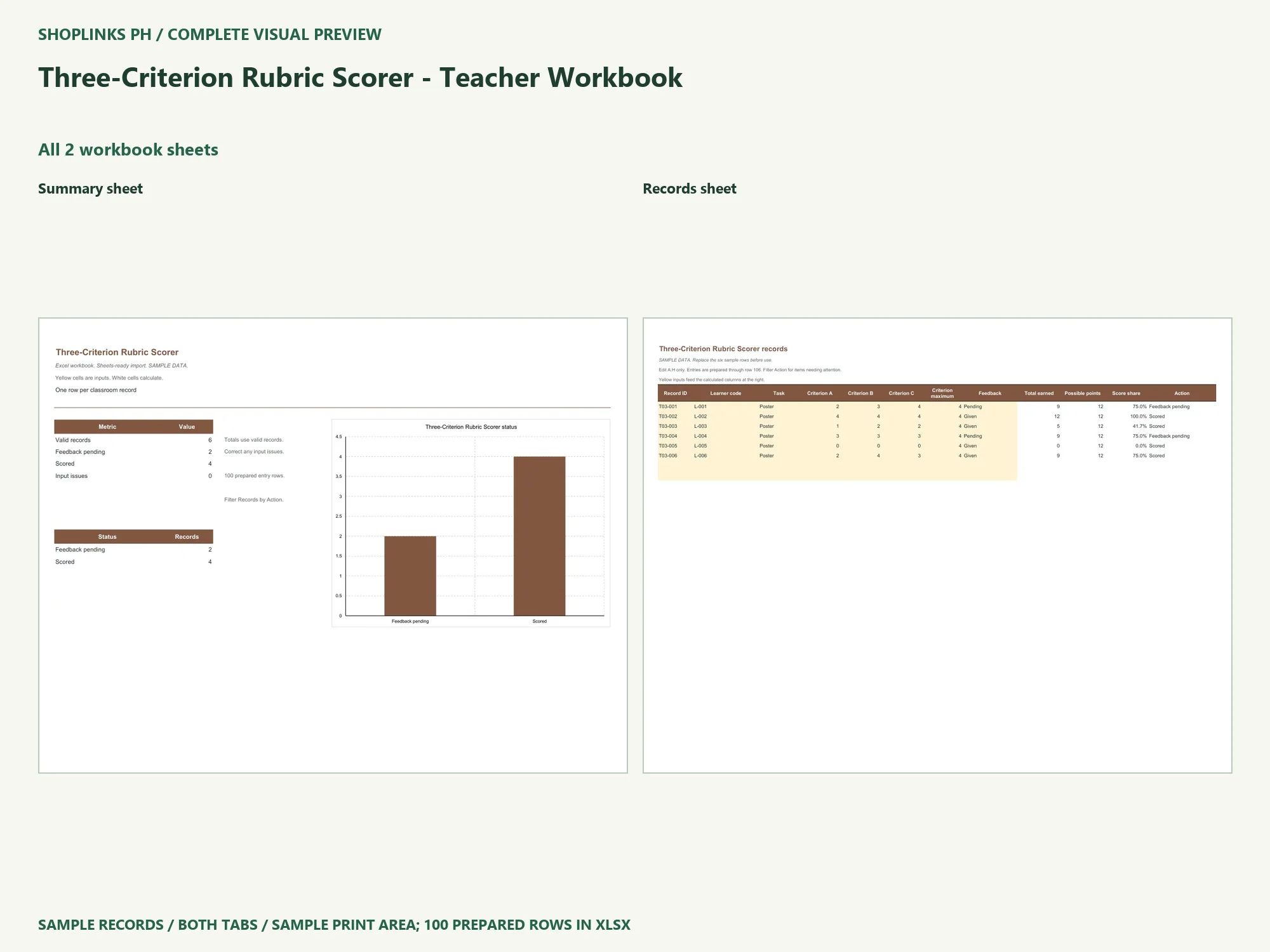
See all 2 workbook sheets below. These are static visual previews of the included source, with fictional sample content. Select an image to open it at full size and use browser zoom.
Both tabs are shown using the sample print area. The editable workbook has 100 prepared rows; the preview does not display every blank input row. Google Sheets conversion remains untested.