Key takeaways
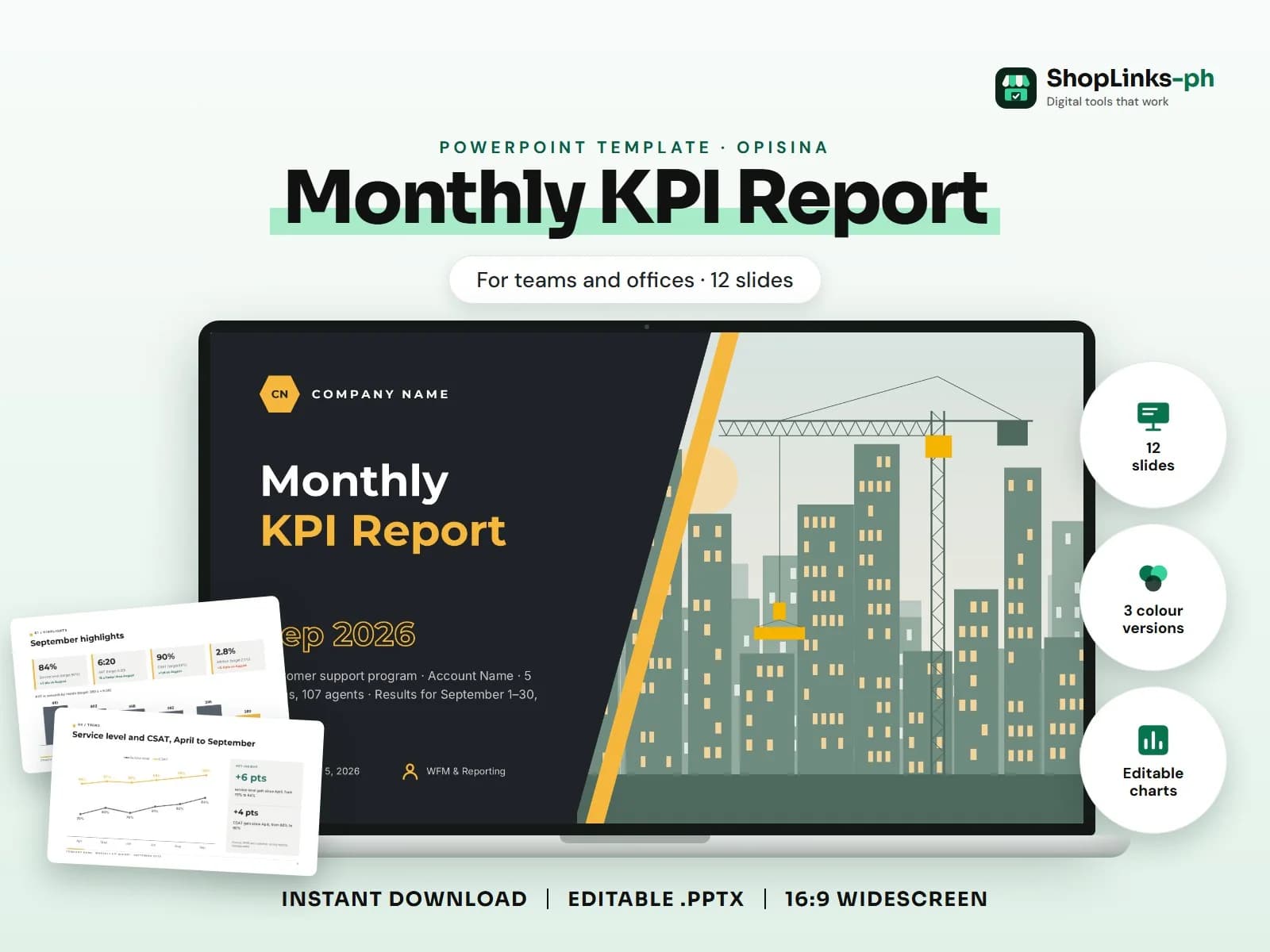
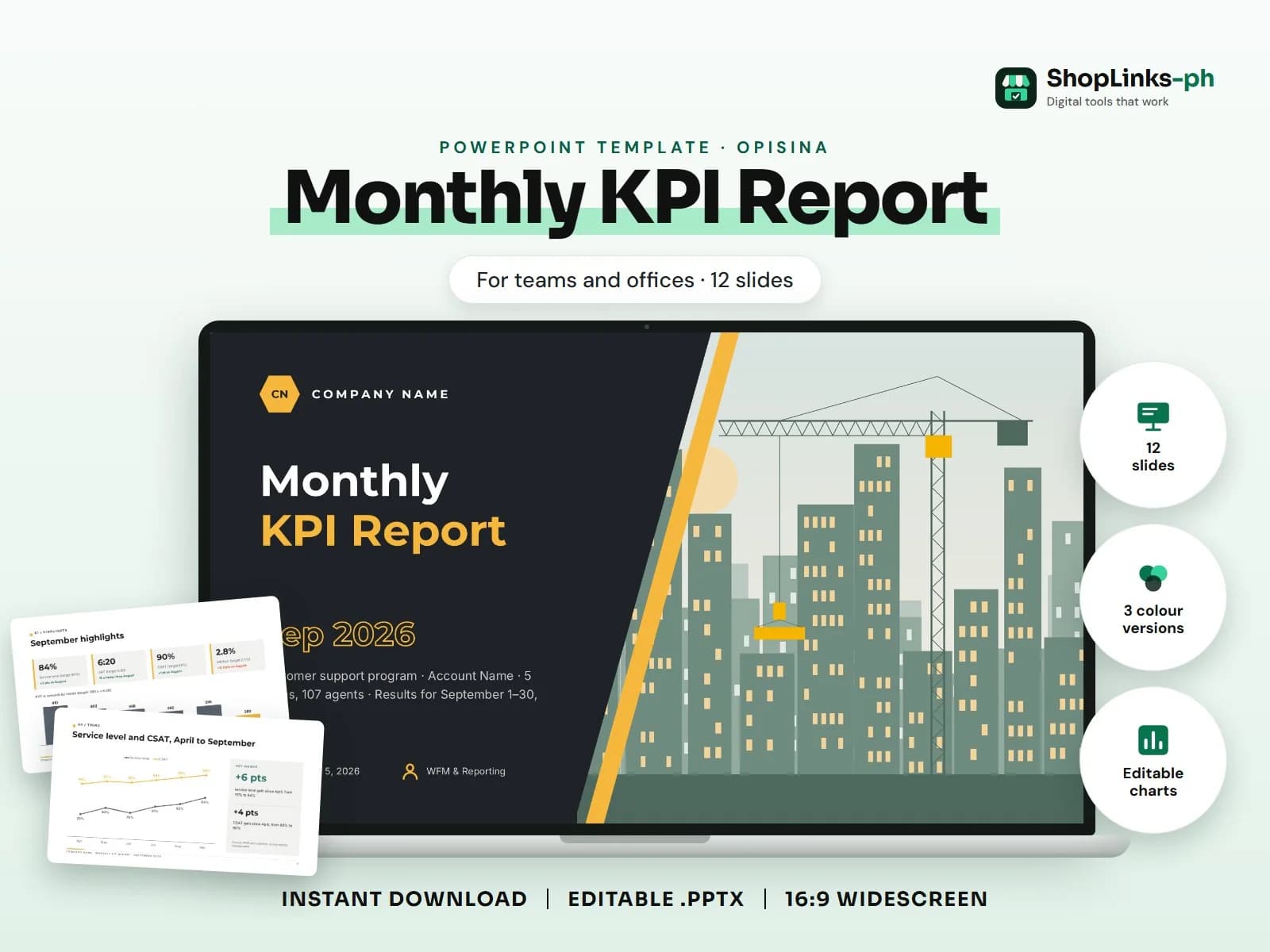
- 12 editable slides with sample content.
- Three colour versions and fonts built in.
- Open with the numbers that matter most and say what they mean for the team.
KPI report: highlights (kpi), trend chart, KPI table vs target, by-team chart, insights, actions, next month targets.. This guide walks through what a good monthly kpi report presentation covers, slide by slide, and how to prepare it quickly with an editable PowerPoint template.
Who this is for
Team leads and HR staff present the same kinds of updates again and again. A consistent deck makes meetings shorter and easier to follow, and you only change the numbers each time.
What to include, slide by slide
- September highlights
- September in one line
- Trends and targets
- Service level and CSAT, April to September
- KPIs against target
- CSAT and QA score by team, September
- Insights and actions
- What the numbers tell us
- Actions for October
- Targets for next month
How to edit it in five steps
- Open the .pptx in Microsoft PowerPoint and choose the colour version you like.
- Click any sample text and type over it with your own content.
- Right-click each picture, choose Change Picture and insert your own photo.
- Right-click a chart and choose Edit Data to type your numbers; tables edit like any table.
- Read the speaker notes for slide-specific tips, then present with F5.
Tips before you present
- Open with the numbers that matter most and say what they mean for the team.
- Update charts with right-click > Edit Data so the visuals stay consistent.
- Keep one action owner and date on every action item.
- Send the deck as a PDF after the meeting so everyone has the same version.
- Reuse the same file each week or month; only the numbers change.
Get the editable template
The Monthly KPI Report PowerPoint Template has 12 slides with sample content to replace, three colour versions and the fonts built in. It costs ₱149 and downloads right after payment.